Mask in PowerPoint: How to create a cohesive and professional presentation
Learn what the PowerPoint mask is for, how to create it, edit it, and use it to save time and improve graphical consistency.

Spending too much time editing each slide one by one? Your logo is never in the right place, your titles change size from one slide to another, and your teams waste a lot of time harmonizing presentations?
Good news: PowerPoint has thought of everything. Less good news: the majority of users do not use it.
The “slide master”, also called slide master, is an underused tool... but incredibly powerful. It allows you to create a structured presentation template, where every element - background, titles, fonts, fonts, logos, footers - is designed once and for all.
Result? One immediate time savings, a automatic formatting, and above all, a effortless visual consistency.
In this article, we explain everything to you. From the definition of the mask to best design practices, including the pitfalls to avoid, you will discover how to turn your PowerPoint into a a real tool for branding and efficiency. Whether you are a designer, manager, or simply a demanding user, this guide is made for you.
What is a mask in PowerPoint and what is it used for?
Before you think animation, Storytelling or visual impact, let's lay the groundwork. The PowerPoint slide master - which some also call master slide or Slidemaster - is a invisible template that structures your entire presentation.
Simple PowerPoint mask definition
Concretely, a PowerPoint mask is a “Mother” slide where you define all the integrated graphic elements: logos, backgrounds, backgrounds, text styles, footers, reserved areas for titles or content, etc.
Each time you add a new slide, it automatically inherits this structure. That's what we call the automatic formatting by inheritance. And that's exactly what allows your supports to have a coherent graphic charter - even when they are modified by several people.
Tip: you can access the masks via the tab Display > Slide mask. It all starts here.
Classic slide vs. slide master
One Classic slide is a unique slide that you personalize “by hand”. Conversely, the Slide master acts like a matrix, automatically applied to all the slides linked to it.
Changing an element in the master (for example, moving the logo or changing the title font) will instantly update any slides that depend on it. This allows a simplifying the design And a Refreshing content at scale.
Why use a PowerPoint mask?
Using the PowerPoint mask means choosing:
- The saving of time : no need to manually readjust each slide.
- Visual coherence : fonts, colors, styles, everything is aligned.
- Clarity for the team : each contributor works on a common basis.
- The position of the elements controlled: logos, titles and content stay where they need to be.
- The reuse of models becomes possible on several projects, without starting from scratch.
And above all: it is the best way to integrate your Graphic charter in each presentation. In business, where Branding is sometimes played down to a pixel, it's a essential lever.
Slide Master = PowerPoint mask?
Both terms are often used synonymously, but there is a nuance.
- The “Slide Master”, in French, refers to the global function which allows you to manage the structure of the slides (accessible via View > Slide Master).
- The “Slide Master” (English term) refers to The main mask in this interface.
But this main mask is not necessarily unique. PowerPoint allows you to create several distinct masks in the same layout, each with its own design, its own colors, its own styles.
And inside each mask, we find several provisions (layouts): title slide, content, two columns, etc.
We then talk about hierarchy of masks : the Slide Master is one main mask among others; the “PowerPoint mask” refers to all of these structures that control the appearance of your slides.
How to create a mask on PowerPoint (step-by-step tutorial)
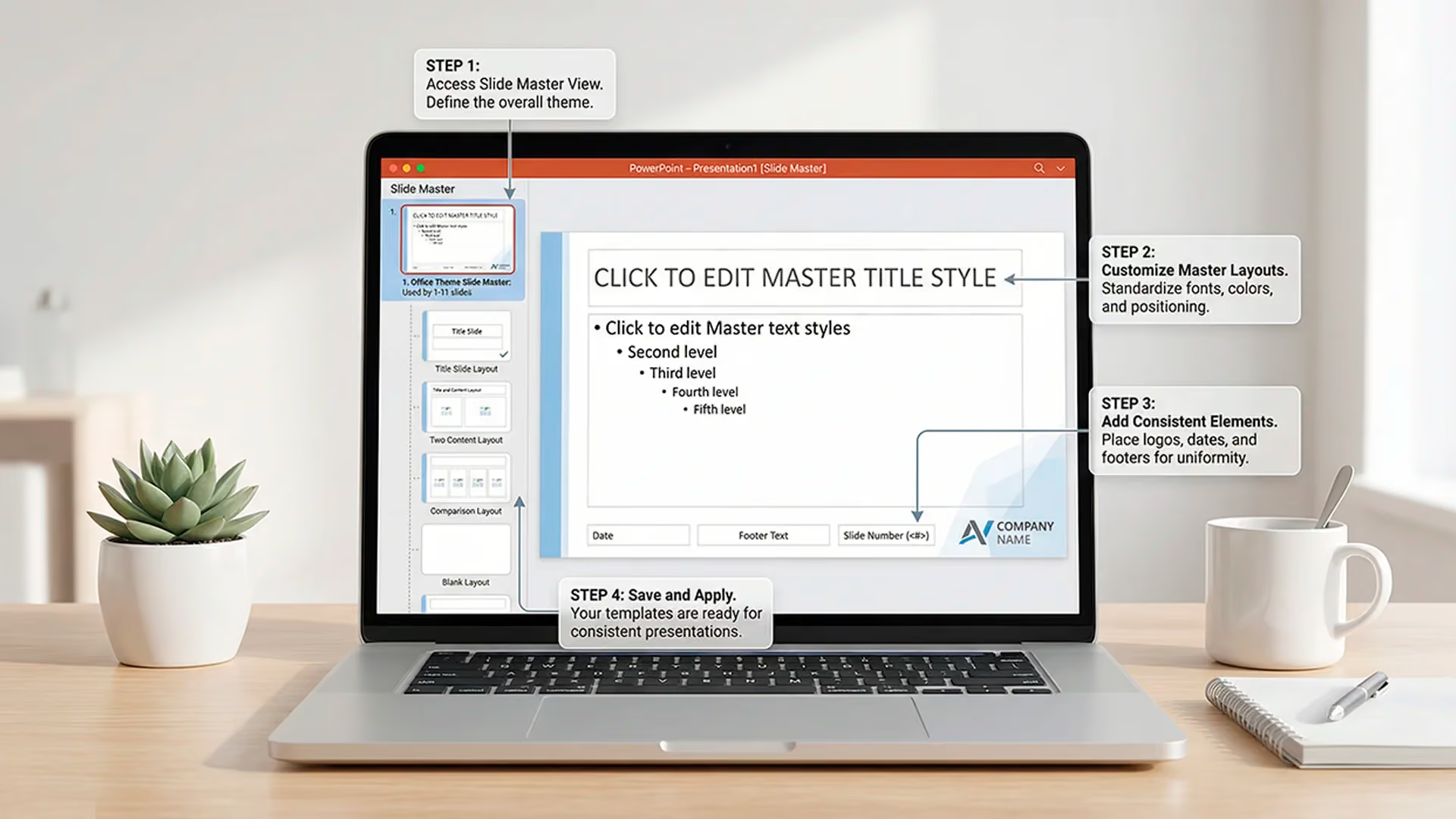
Creating a PowerPoint mask is a bit like laying the foundations of a building. If done right, everything else is simpler, stronger... and faster. Here's how to build a clear, reusable presentation template that is perfectly aligned with your graphic charter.
Step 1: Access the “Slide Master” mode
This is where it all happens.
Open your PowerPoint file, then go to the tab Display > Slide mask.
You then enter a specific interface: on the left, you will see a vertical list with:
- one large slide at the very top (It's the main mask, or Slidemaster),
- below, several provisions already ready (title + content, two columns, etc.).
It is this structure that you will be able to personalize, simplify or enrich according to your needs.
If you're using PowerPoint on Mac, accessing the mask is exactly the same way. The operation is identical to the Windows version.
Step 2: Customize the main mask
Click on the first large tile (the main mask). This is where you are going to define all the common elements to the entire presentation :
- the background (color, image, transparency...),
- The polices by default (title, text),
- The color palette linked to your graphic charter,
- The footers : slide number, date, legal information,
- and of course... your logo (top left, bottom right or according to your charter).
Anything you insert or change here will be visible on all the slides associated with this master, without having to do it again manually.
Step 3: Adjust the layouts
Les provisions are like variants of the main mask: they are used to cover different types of content (title page, classic slide, comparison slide, etc.).
For each layout:
- Click on the thumbnail concerned,
- Change the location of the text boxes if necessary,
- Remove unnecessary areas (right click > Delete placeholder),
- Add recurring elements (e.g. a section icon, a pictogram, a partial background image...).
Objective: that you or your users have ready-to-use layouts, clear and aligned.
Good reflex: Keep only 4 to 6 useful provisions. Too many variants complicate use and encourage you to do things outside the box.
Step 4: save your mask
Once your changes are complete:
- Click on Close Mask mode in the tab at the top.
- Save your file:
- Be in .pptx if you use it directly,
- Be in .potx if you want to create a reusable PowerPoint template for the whole team.
And that's it: you've just created a structured template, ready to speed up all your future presentations.
Note: if you want to go further, our article”What are the key steps in creating an effective PowerPoint template?” guides you step by step to build a template that is both stylish, functional and respectful of your brand identity.
How to apply and edit a mask on PowerPoint
Creating a mask is good. Using it properly is better.
Whether you want to apply it to all your slides, modify an existing template, or do a bit of cleaning, here are the things you need to know to maintain control over your presentation.
How do I apply a mask to all PowerPoint slides?
By default, when a mask is active, each new slide created automatically adopts one of its provisions.
But if you imported slides from another file, or if your presentation contains several masks, some slides may not be aligned with the correct one. To put everything back in order, nothing could be easier.
Method 1: via the tab Layout
- Select all slides (Ctrl+A or Command+A in the left pane).
- Right click > Layout.
- Choose one of provisions related to your mask (they are grouped by game in the dropdown menu).
- Your slides instantly adopt the format of the right mask.
Method 2: via the tab Conception
- Click on the tab Conception.
- Spot the graphic theme associated with your mask.
- Right click > Apply to all slides.
This method is especially useful if several masks coexist in the document (after copy and paste for example). This ensures that all the slides follow the same design.
How do I edit an existing PowerPoint mask?
Need to update a color, change the title font, or add a new pictogram on each slide?
Here's how to do it:
- Go in View > Slide Master.
- Click on the main mask (at the top of the left column).
- Make your adjustments: font, colors, background, footer, etc.
- Click on Close Mask mode.
All changes will automatically be reflected on the slides linked to this mask, except those that have been changed manually.
In this case, consider the reset (right click on the slide > Reset) to make them use the styles of the mask.
Bonus tip: to change a single layout without touching the rest, simply select the layout in question and customize it directly.
How do I remove an unnecessary PowerPoint mask?
A PowerPoint file can contain “ghost” masks imported unintentionally (by copying slides from other presentations, for example). Result: your file becomes heavy, disorganized, and some slides adopt an inconsistent style.
Here's how to clean up:
- See you in View > Slide Master.
- In the left panel, identify unused masks (often those whose layouts are not related to your slides).
- Right click on the mask > Remove the mask.
Warning: if slides are still linked to it, PowerPoint will prevent you from deleting it. You will first have to apply a provision linked to another mask to them (see below).
It is a good practice to adopt at the end of the project: remove unnecessary masks to lighten your file and avoid errors.
Reassigning a slide to the right mask: the key reflex
When you notice that a slide “goes one by one” graphically, there is a good chance that it will is not linked to the right mask. In this case:
- Click on the slide in question.
- Go in Layout (via the Home tab or right click).
- Select the correct mask layout.
Your slide is instantly back in the system.
What you've just learned here is more than just a how-to: it's the basis for maintaining a clean, coherent and controlled PowerPoint system.
Fewer retouching, more readability, and above all... zero last-minute stress.
Common PowerPoint mask issues (and how to fix them)
The PowerPoint mask is a great ally... until the moment when Something is no longer working as expected. Recalcitrant slide, fickle layout, elements that disappear...
Don't panic. Here are the most common mistakes - and most importantly, How to solve them.
Problem 1: mask changes don't apply
You have Changed the font or added a logo in the master, but nothing moves on some slides? No bugs, but classic behavior.
In PowerPoint, if a user has Manually edited a slide, this one no longer follows the styles of the default mask. It becomes “independent.”
Solution:
- Click on the slide in question.
- Right click > Reinitialize.
- This removes manual changes and reapplies mask styles.
This is the first thing to test when a slide refuses to enter the ranks.
Problem 2: Slides use an old mask or an inconsistent style
This case often happens after copying and pasting from another presentation. PowerPoint Import the source presentation mask silently, which creates a mix of styles.
Solution:
- Go in View > Slide Master.
- Remove unwanted masks (right click > Remove mask).
- Then, in the tab Layout, reapply one of the layouts in the main mask.
The objective: only one active graphic charter per presentation.
Problem 3: The layout does not respect the intended areas
You have clearly defined your titles and content areas in the mask... but on some slides, the text overflows, the images are placed incorrectly, or the title is missing?
Three possible causes:
- The layout used is not the right one,
- The user has removed the reserved areas,
- A style has been applied manually (font, size, color).
Solution:
- Check the Layout of the slide (right click > Layout).
- Click on Reinitialize to force the mask to be formatted.
- If necessary, reinsert the reserved area in the corresponding mask.
Problem 4: You have too many unused layouts
PowerPoint created by default a dozen layouts per mask. But in reality, you often only use 4 or 5.
Too many choices create confusion: your teams select the wrong layout, and the document becomes a graphical patchwork.
Solution:
- Go in the Slide Master mode.
- Remove unnecessary layouts (right click > Delete layout).
- Clearly name useful layouts (“Title slide”, “Content + image slide”, etc.).
An effective mask = few layouts, well named, well thought out.
Problem 5: The file becomes large and unstable
A PowerPoint file that contains several masks, too many fonts, uncompressed HD visuals, or useless animations... can quickly Becoming slow, or even plant when opened.
Solution:
- Clean up masks and superfluous layouts.
- Remove duplicate objects in the mask (images, shapes).
- Compress images (right click > Compress images).
- Save in format .potx if you want to create an own template for the team.
Every mask problem has a simple solution, as long as you understand How PowerPoint prioritizes its styles and layouts.
Once mastered, this system allows you to keep control of the structure, the charter and the readability of all your presentations.
Best practices for an effective PowerPoint mask
A well-designed PowerPoint mask is your best ally to save time and ensure a professional presentation, even in multiple hands. But to take full advantage of it, it still needs to be designed intelligently. Here are the golden rules for a mask that is clear, solid... and really useful.
What elements do you absolutely need to include in a PowerPoint mask?
A good mask is more than just a logo and a colored background. He must lay the graphic and structural foundations of your entire presentation.
Here are the indispensable elements to be integrated:
- Logo : positioned once and for all, at the top or bottom (according to your charter).
- Default font : one for the titles, another (or the same) for the content.
- Color palette : directly integrated via the tab Colors > Customize colors.
- Footer : slide number, date, document name... according to your needs.
- Reserved areas : to force the structure of the contents (title, text, image, graph...).
The idea is not to freeze everything, but to provide a coherent framework to all contributors. The mask is used to structure, not to restrict.
Reduce for better control
PowerPoint offers a dozen layouts by default... that nobody uses entirely. Too many choices create clutter.
Mprez recommendation: limit yourself to 5 or 6 useful provisions, well named and well thought out:
- Title slide
- Classic slide (title + content)
- Slide with image
- Slide comparison
- Slide quote or “punchline”
- Conclusion slide
Fewer layouts = fewer errors + more consistency + a mask that's easy to use, even for non-designers.
Respect (really) the graphic charter
An effective mask is above all a guarantor of visual coherence. He must embody your brand identity, without compromise.
- Integrate your Official palette (not just “blue that looks like”)
- Set up the text styles to avoid liberties in size or color
- Check the alignments, the margins, the breathing zones
The mask is the best place to lock these elements - and prevent your employees from tinkering slide by slide.
Need to go further? Our article”Best practices for getting a complex message across on PowerPoint” will help you combine structure and readability.
Think reuse (and teamwork)
A good mask is not just designed for “you.” It should be:
- reusable in other files (export it as .potx)
- Understandable by anyone
- resistant to unwanted copy and paste
Add a Slide-guide in your file, at the beginning or end of the document: a slide that explains How to use the right layouts and avoid classic mistakes.
A clear mask is also educational support for your team.
And on Mac, does it work the same?
Yes. Good news: how the PowerPoint mask works is identical on Windows and on Mac.
Only the layout of the interface changes slightly, but the access (View > Slide Master), the hierarchical logic and the settings are exactly the same.
A well-constructed PowerPoint mask is a Time saved with each presentation, a controlled design level... and a real marker of professionalism.
It's also what allows your team - marketing, sales, HR, finance - to speak with a single visual voice.
But above all, it is a solid foundation on which your messages take shape, without having to rebuild everything every time.
If you regularly manage corporate presentations, you know how time-consuming last-minute edits, style inconsistencies, or manual adjustments can be. By integrating well-designed masks, you eliminate these frictions, you strengthen your brand image, and you make life easier for the whole team.
No time or skills to do it? Contact our PowerPoint experts - we'll take care of it for you.