Best practices for making your PowerPoint presentations accessible
Learn best practices for making your PowerPoint presentations accessible to everyone, optimizing readability, navigation, and inclusiveness for your listeners, regardless of their needs.

Accessibility is a major issue, since 12 million French people have disabilities. It is therefore important to adopt inclusive practices In order to Ensuring equal access to information and opportunities. Moreover, accessibility is a legal and ethical obligation.
In the case of PowerPoint presentations, this question becomes indispensable, as a poorly designed presentation can exclude people with various disabilities, such as visual, auditory, or cognitive disabilities. Adopt inclusive practices in creating a presentation is essential to allow everyone, regardless of their situation, to understand and interact with the content in an equitable manner.
The purpose of this article is to help you adopt best practices to be implemented in order to make your PowerPoint presentations accessible to everyone, through clear and inclusive communication.
Digital accessibility: what are we talking about?
La Web Accessibility Initiative (WAI), an organization seeking to Make the internet accessible to people with disabilities, Define digital accessibility in the following way :
“Web accessibility means that people with disabilities can use the web. More specifically, accessibility means that The web is designed so that these people can perceive, understand, navigate, and interact effectively with the Web, but also create content and contribute to the Web.”
When preparing a Powerpoint presentation, keep in mind that there may be people in your audience who suffer from hearing limitations, of visual limitations or even cognitive limitations (e.g. memory or concentration problems). It will also benefit older people as well as people who are not fluent in the language of presentation.
Accessibility is therefore as much about creating a presentation as well. clear and legible as possible, that at Ensure the compatibility of the Powerpoint document with screen readers. These technical assistance programs for people “unable to read” transcribe by voice synthesis or on a Braille display what is displayed on a computer screen in terms of both content and structure.
The main rules of accessibility
Rule 1: the prioritization of information
La prioritization Some content plays an essential role in your presentation, as it allows your audience to quickly grasp the main ideas and follow the common thread. This especially makes it easier for people with cognitive disabilities or reading difficulties to understand.
The easiest way to respect the principle of hierarchy is to use the predefined text styles in PowerPoint, such as titles, subtitles, and body text. Importantly, these styles also allow screen readers to better interpret and read content.
Another good way to prioritize information in your presentation is to use bulleted lists or to the numbered lists from the” tab Fleas ”.
Remember to determine a reading order
For each page, remember to specify A reading order. This will determine how the slides should be read by a screen reader. The order should reflect the logic of the document.
For determine a reading order, you need to:
- Click “Verify” and then “Check accessibility.”
- In the Warnings section, select the “Check Reading Order” category to view the list. If the reading order of items on a slide does not meet one of the usual spatial configurations, the accessibility checker will show that slide in the list.
- Hover over the number of a slide in the list, then click the dropdown arrow next to it. Then select the “Check the order of the objects” option.
Pay attention to colors!
The lack of contrast between text colors and the background of a PowerPoint presentation can make your presentation illegible.
Even if you don't notice it, a person with vision problems might not see anything. You can easily check if the contrast level between colors of text and the background is sufficient thanks to the tool Contrast checker.
For example, in order to respect the accessibility standard WCAG 2.0 Level AA, a contrast ratio of at least 4. 5:1 for normal text and 3:1 for large text is required].
Watch that color is not the only way to transmit information, as some people may have difficulty seeing colors. It is therefore essential to use visual alternatives, such as shapes or symbols, or even textures.
Make your text legible
Which font should you choose?
For the font, it is essential to avoid decorative or overly stylized fonts. We advise you to choose A “sans serif” font, that is, sans serif, like Arial, Calibri, or Helvetica, which are commonly used. These are simpler, and therefore more understandable.
What size should the font be set to?
For body text, we recommend that you fix The font size at least 12 points. Note that, in the probable event that your presentation is projected, the text should be increased in proportion to the distance the audience is from the projection screen.
Making multimedia items accessible
Remember to describe images and graphics
For each image, graph, or table, add a text description detailing what it represents in the “alternative text” so that screen reader users can access the visual content of the presentation.
To add “alternative text”:
1. Right-click the object and then select “Edit Alternative Text.”
2. In the “Alternative Text” panel, enter one or two sentences in the text box to describe the object and its context to someone who can't see it. If you are using infographics, diagrams, or other complex visuals, we strongly recommend that you provide a detailed explanation so that every viewer can understand the information.
On the video side, how is it going?
To make your videos accessible, it is necessary to include subtitles. This allows people who are deaf or hard of hearing to follow the content of the video independently. To do this, the easiest way is to subtitle the video before integrating it into your presentation with free software like Capcut.
The essential tips to ensure the accessibility of your Powerpoint
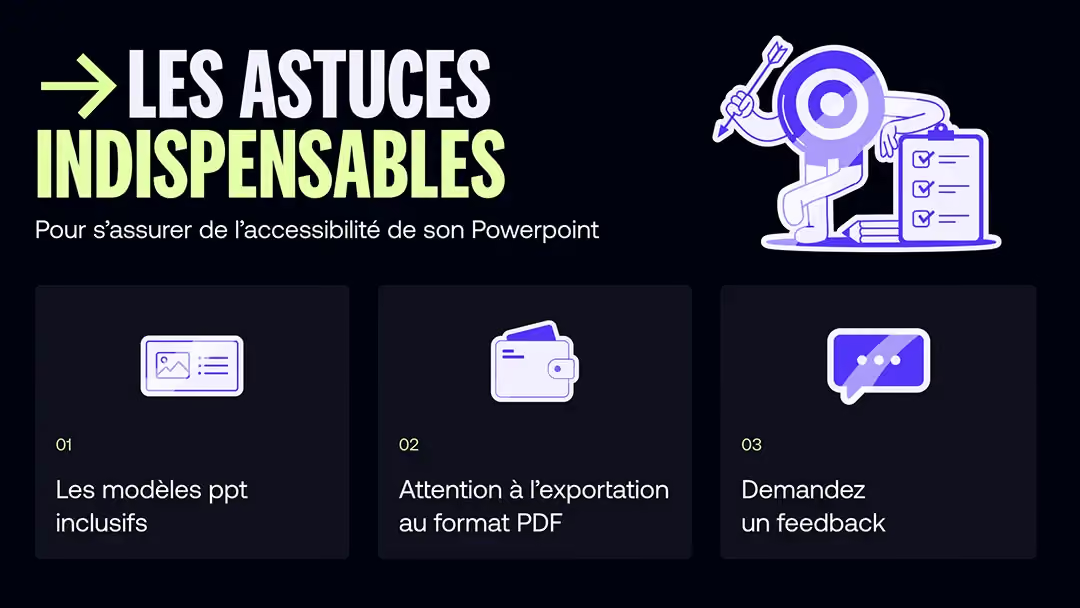
Inclusive Powerpoint templates
To be sure to respect these rules, and to save time in the process, Opt for PowerPoint templates that respect readability principles : contrasting colors, simple and large enough fonts, and a clear hierarchy of information.
To find a model that complies with accessibility regulations:
1. Click on File > Nouveau
2. In the text field, search for” accessible models ”
3. From the search results, select an appropriate model.
4. In the model preview, click Create.
The essential “Accessibility Check” tool
Tester the accessibility of a presentation is essential to ensure that it is understandable and usable by everyone, including people with disabilities. PowerPoint offers a built-in tool called The “Accessibility Checker”.
This checker detects common mistakes, such as insufficient contrasts, undescribed graphics, or poorly structured titles.
It is available in the menu File > Information > Check for problems > Check accessibility.
The tool provides a report detailing the problems to be corrected, thus facilitating the improvement of the presentation. In the inspection results, select a problem and then click on “additional information” to get the steps to follow to resolve the problem. All you have to do is make the necessary changes to your document.
Attention to exporting to PDF!
If you decide to export your Powerpoint presentation in PDF format, we recommend that you check the option “best for electronic distribution and accessibility”. This ensures that content is properly tagged, making it easier for screen readers and other assistive technologies to use.
Ask for a Feedback
It is also important to test the presentation with people with disabilities. This makes it possible to obtain concrete feedback on the user experience and to identify aspects that are often overlooked by automatic verification tools, such as the clarity of descriptions or the navigation through the slides.
Making your presentation accessible is not that difficult, once you have assimilated the main rules of accessibility and mastered the digital tools for verifying accessibility. This will allow you to fulfill this legal, but above all ethical obligation, to ensure true inclusion for all.
So don't forget to Structure your next Powerpoint presentation, to pay attention to contrasts and text size, and to make images and videos accessible!
Do you need help with your PowerPoint presentations? Our team of experts is at your service and ready to support you in all your projects, even the most ambitious ones. Do not hesitate to contact us.
[5] By large text, we mean text that is at least 18 in size, or 14 if it is in bold.