How do I create an organization chart in PowerPoint?
In this article, we give you all our advice on creating and using this tool, which will quickly become your best ally for your PowerPoint presentations!

Good PowerPoint materials are always excellent showcases for your brand. Indeed, PPT offers a plethora of tools, options and visuals to make your business shine.
One of these many essential tools is the organization chart. This visual, very practical, allows to clearly explain the structure of your business and to explain the role of each of your employees in record time.
But then, When and how to use an organization chart ? In this article, we give you all our advice on creating and using this tool, which will quickly become your best ally for your PowerPoint presentations!
What is the purpose of an organization chart?
Short description of the organization chart
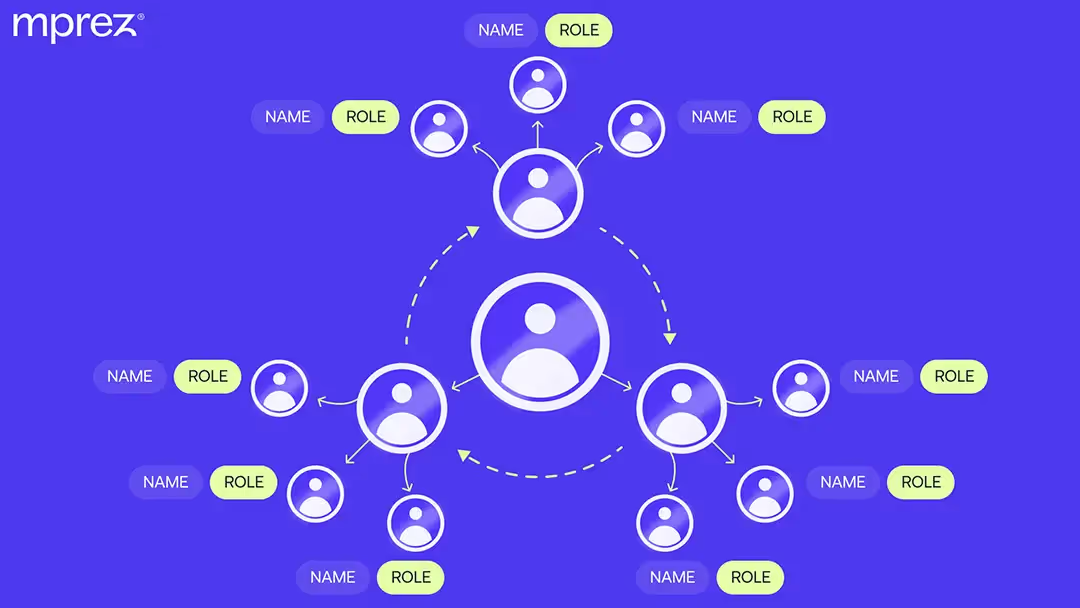
Let's start by understanding the terms: an organization chart is a representation by diagram of the various functions and active positions within your company. It allows you to visualize:
- the various poles and departments;
- management levels;
- hierarchical relationships;
- organizational links between the clusters;
- functional relationships between all employees.
This tool is therefore used to clarify the internal structure of a box. Sometimes, the names of collaborators and their contacts are added to the organization chart. We can follow the branches of the diagram, in order to find the contact person who to contact.
Who is an organization chart for?
The organization chart is a strategic tool to address different audiences. It is used for both internal and external presentations.
Let's first look at the uses of the flowchart within your company :
En external, the organization chart is used to:
- Explain the internal structure of your business, in particular the various clusters of activities.
- Gain transparency with your partners and customers.
- Identify the people to contact according to each work theme.
The best opportunities to use an organization chart
The organization chart will be particularly useful in the following situations:
- One presentation internally to the company, to offer an organized overview, and allow each employee to locate themselves in the general structure.
- One integration/displacement of employees, to explain how you work and Clarifying the role of the department and the team he is joining.
- One project planning, which may include a more specific organization chart, such as a zoom detailing the team members assigned to each stage of the project.
- One Meeting with a customer or partner with a specific profile, who needs to be in contact with only a few collaborators. In this case, suggest a partial organization chart.
- One PowerPoint strategy presentation of your business. You reflect the relevance of your brand through the roles and expertise of your employees.
The components of the organization chart
Essential information
Your organization chart design starts with a clear visualization of your business and its various departments. Your organization chart looks like a form of family tree. The branches contain the Details of your teams, creating a synthetic representation and reachable of all your talents.
Indeed, if your business organization chart can be used in several situations, consider it as a permanent tool for your teams and partners. They can use it as a directory of privileged contacts according to the tasks to be performed.
Organization chart: the choice of form
The organization chart can take a variety of forms, leaving you with a beautiful creative freedom. Among these are:
- La Hierarchical pyramid : it is the most common form, which places management at the top and descends vertically to the different teams, decreasing in responsibility at each level.
- THEtree : this flowchart is similar to the pyramidal one, but can be read from left to right. The advantage: you can continue to make it grow, by adding branches, without upsetting the whole structure.
- The trefoil : with 4 sheets or more, it allows you to represent the different departments of your company at equivalent levels. It's up to you to illustrate your club according to the poles of your company, without distinction of hierarchy!
- THEmatrix flow chart : ideal for large or medium-sized businesses, as it allows you to visualize the various management positions and levels of responsibility, while illustrating the tasks that link employees together.
- THEhorizontal flowchart : very spread out, this design allows all employees to be presented at the same level, to avoid hierarchical distinctions. However, this structure is more suitable for small businesses, where the workforce is limited.
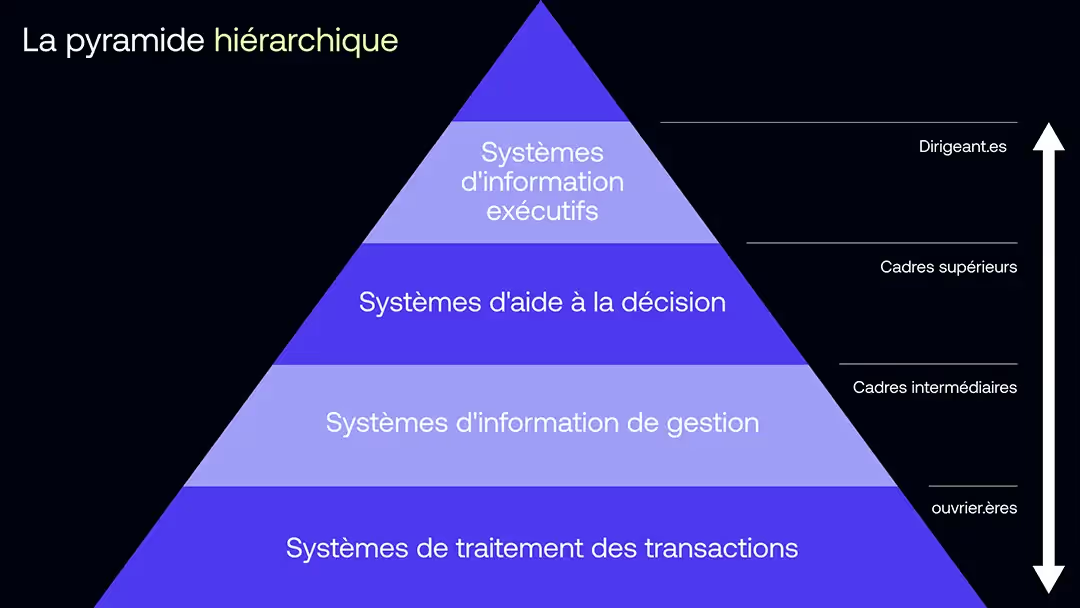
Your brand graphic charter
Finally, the last essential component of your organization chart: your brand identity ! It is essential that your design reflects your graphic charter. Again, you have room for creativity, just like the rest of your PowerPoint.
Your internal structure and your collaborators will thus carry the colors of your box! To do this, remember to use the official fonts, brand colors, logos and icons specific to your charter.
The steps for creating an organization chart
Step 1: Brainstorming to lay the groundwork
Before starting to create your organization chart, you must first lay the foundations for it. To do this, Plan a time for brainstorming, alone or with your teams, to decide what elements to include in your design, and what type. You will therefore have to choose:
- La Shape you want to give to your organization chart, by selecting one of the options mentioned above. This decision is subject to the number of collaborators to be mentioned and has a strong impact on the readability of your design. So weigh the pros and cons, especially with your creative teams!
- Les information you want to show : some organization charts only show job titles, others include details of staff names, contacts, and main missions.
- Les organization chart categories : do you want to show your employees by departments and functions, by geographical areas if you have international teams, or by product type if you offer a wide range of services?
- Les possible derivatives of your organization chart : to do this, you need to know the uses you are going to make of it. For a PowerPoint presentation to customers, you do not necessarily need to list your HR teams for example; you can therefore opt for a complete design where some parts can be hidden, or expanded to show only relevant information depending on the context.
Step 2: Designing your organization chart
Then, jump into the big picture, creating your design. On PowerPoint, he follow these steps:
- On your slide of choice, click the “Insert” tab.
- Select the “SmartArt” tool.
- Open the “Choose a SmartArt Graphic” option.
- Explore the “Hierarchy”, “Relationship”, “Pyramid”, or “Matrix” categories.
- Choose the design that best fits your needs.
Then, personalize it to your heart's content! Remember to include:
- greats departments of the company;
- All the positions and functions;
- Of pictures Of employees so that they can find each other more easily (if this is relevant for your visual);
- Of colours to better distinguish teams and hierarchical relationships;
- Of icons or logos to finish shaping the design to your image.

Step 3: Dissemination of the organization chart
Finally, the last step in creating your organization chart is to bring it to life and share it around you! To do this, determine the type of distribution (internal and/or external), then choose the sharing media adapted to your communication channels: PDF, PowerPoint and Office suite, Google Slides, Keynote, mp4 players... The world is your oyster!
You can also integrate your organization chart with your permanent documentation. For example, create a Drive, Sharepoint or Dropbox folder with your company's informative documents for your employees, which can be used as a toolbox, but also as support during onboarding.
Feel free to add your organization chart to all of your existing PPT presentations. You can also extract the slide from the organization chart in JPG/PNG or PDF format, to have the visual and share it as soon as necessary.

You now have all the tools in hand to create your custom business organization chart ! It's not a very complicated process, just make sure you choose the design that fits your box perfectly.
You can now add it to all your PowerPoint presentations! If you want to benefit from a professional look at your organization chart, our mprez experts are there to offer you THE ideal visual to illustrate your business structure. Do not hesitate to contact us!